Guide · 04
Keypad & packages
RP42’s calculator pane has three pages that share the screen. Page 1 is a fixed numeric / arithmetic block (digits, +, -, *, /, ENTER, ⌫) that always stays at the bottom. Page 2, above it, is the package area — a tab strip plus a grid of the words in the selected category. Page 3 is a grid of card calc tiles reached by swiping left on the page-dots strip. The keypad stays visible on all three pages; only the area above it changes.
Page 2 · package tabs
The package tab strip lists the engine’s visible categories. Tap a tab to bring that category’s words into the grid above the numeric keys. The order roughly matches the classic HP grouping — math, stack, types, linear algebra, logic, units, stats, finance, geometry, control — with newer categories (formulas, sports, colors, colorspaces, constants) after. The ordering is a display override on top of what the engine registers; a new category from a loaded extension appears automatically.
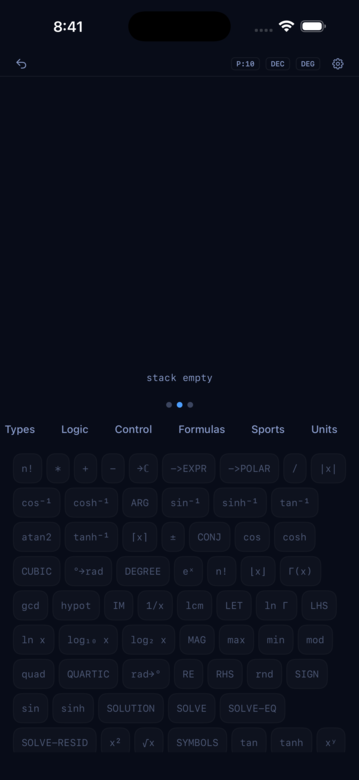
The keyword grid
Inside the active package, you see a grid of word buttons. Each button is the canonical engine word — though sometimes with a friendlier label (√x shows √x, 1/x shows 1/x). Tap a button to run that word against the current stack.
Tooltips on every word
Long-press any word in the keyword grid to see its tooltip — a short panel listing the word’s stack effects (its overloads) and a one-line description.
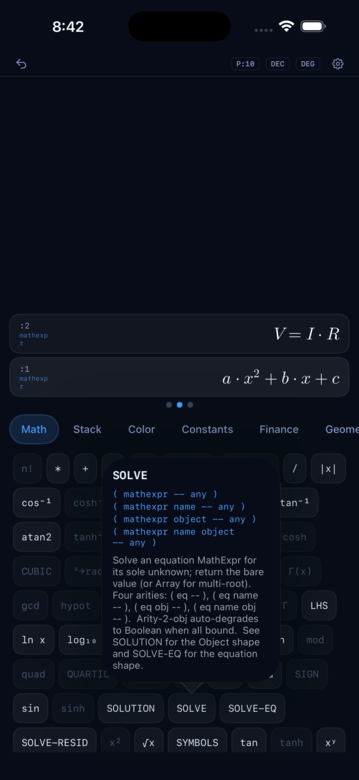
Any custom word you define (covered later in the Power user page) picks up its own tooltip too — write a description when you register the word and it shows up on long-press just like the built-ins.
Page 3 · card tiles
Swipe left on the page-dots strip at the bottom of the pane — or on the REPL/entry-field area above the keypad — to reveal the card-calc tile grid, grouped by domain (Finance, Sports, Baking). Each tile opens a tap-to-edit detail sheet for a domain problem — TVM, run pace, pizza dough, and so on. See the Card calcs page for the full walkthrough.
Finding a word
Three approaches:
- Browse by package. Most categories are small enough to scan.
- Read the Reference. The reference index lists every word with its description; once Plan 3 ships, you’ll be able to search across all of them.
- Type it in the REPL. If you already know the word’s name, just type it. More on the REPL in the Power user page.