Guide · 02
On the Mac
RP42 on the Mac is the same engine, the same cards, the same 290+ words — laid out for a desktop. A three-column window: packages and tiles on the left, your stack in the middle, the word grid or an open Detail card on the right. A REPL along the bottom. Menu bar and keyboard shortcuts for everything. Every gesture the iPhone gives you is here too, but you’ll spend most of your time on the keyboard.
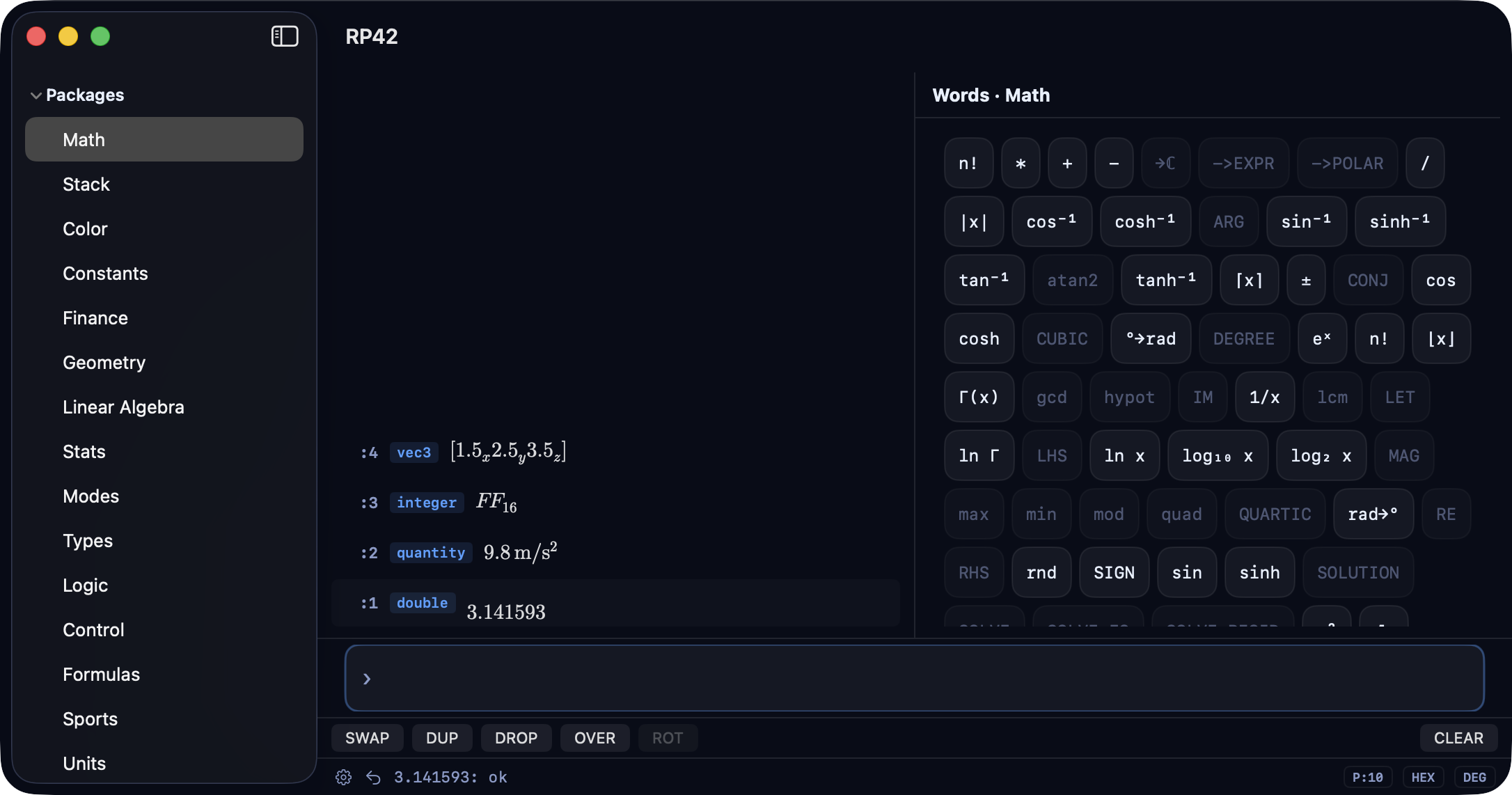
The three-column layout
RP42’s Mac window is a NavigationSplitView. Grab the divider between any two columns to resize; hide the sidebar entirely with ⌃⌘S (the standard Mac shortcut) or the toolbar toggle.
- Left — Sidebar. A tree with two branches: Packages (Math, Stack, Color, Constants, Finance, Geometry, Linear Algebra, Stats, Modes, Types, Logic, Control, Formulas, Sports) and one node per card-calc category (Finance, Running, Cooking, …) whose children are the tiles registered under that category.
- Middle — Stack. Same card-per-value model as iPhone. Cards render with LaTeX for numbers, colored pills for booleans, radix badges for integers, grids for matrices, swatches for colors. A REPL sits along the bottom of this column with a
>prompt. - Right — Words or Detail. Two modes. Words shows the keypad-grid of every word in the currently-selected package. Detail takes over the same space when you tap a stack card, showing its typed detail sheet (chromaticity diagram, matrix grid, TVM form, whatever the type provides).
Sidebar tree
Packages and card categories are both expandable. Arrow keys navigate; Space or Return expand and collapse. Tapping a package label swaps the right pane’s Words grid. Tapping a tile pushes a fresh instance of that class onto the stack and opens its Detail.
Menu bar
Five menus deserve mention. Everything follows Mac convention — command names first, shortcuts on the right.
- RP42 → Settings… (⌘, ) — the same sheet as the iPhone’s status-bar gear. Precision stepper, radix and angle segmented pickers, theme picker, digit-grouping toggle.
- Edit → Copy TOS Display (⌘C ) and Copy TOS as RPN (⌘⇧C ) — copy the top-of-stack card’s rendered display or its RPN deparse to the clipboard. Disabled when the stack is empty.
- View → Focus REPL / Stack / Sidebar (⌘1 / ⌘2 / ⌘3 ) — jump focus between the three regions without using the mouse. Ordering deviates from left-to-right on purpose — REPL is the primary entry surface for a calculator, so it gets ⌘1.
- View → Increase / Decrease Precision (⌘= / ⌘- ) — clamped to 0..15. Same effect as bumping the Settings stepper, but keyboard-native.
- Words — a dynamic menu built from
rpn.packages. Each package is a submenu; each word is a menu item that fires that word against the current stack. Greyed out when the stack doesn’t satisfy the word’s validator — same as the word-grid button behavior. - Tiles — a dynamic menu built from the card-calc registry. Selecting a tile pushes a fresh instance onto the stack, matching the sidebar tile-click behavior.
Keyboard shortcuts
RP42’s Mac REPL is a two-state input surface — a resting command state where every keystroke does something (fires an op, submits history, navigates), and an editing state where the REPL behaves like any Mac text field. The switch between states happens invisibly — you never toggle a mode.
Command state — every key does something
| Key | Action |
|---|---|
| Any letter or digit | Starts a new REPL entry (transition to editing) |
| Space or Return | DUP — duplicate top of stack |
| Delete | DROP — remove top of stack |
+, -, *, /, ^, %, ! | Fire the operator against the stack |
| Left / Right arrow, ⌃B / ⌃F / ⌃A / ⌃E | Transition to editing with an empty buffer (cursor at leading or trailing edge) — this is how you type a leading negative like -0.1 |
| Up / Down / ⌃P / ⌃N | Recall previous / next REPL history entry |
| Escape | Dismiss Detail card |
Editing state — standard NSTextField
Once you start typing, the REPL becomes a normal Mac text field. Every Cocoa binding you already know works: ⌥F word-forward, ⌥B word-back, ⌥⌫ delete-word-back, ⌘A select-all, ⌘C copy selection, cursor arrows, and so on.
- Return submits the buffer to the engine (parses as RPN) and returns you to command state.
- Escape discards the buffer and returns you to command state.
- Up / Down walk the REPL history (unsubmitted content is stashed and restored).
Application shortcuts (⌘)
These work in both states.
| Shortcut | Action |
|---|---|
| ⌘, | Open Settings |
| ⌘1 | Focus REPL |
| ⌘2 | Focus Stack |
| ⌘3 | Focus Sidebar |
| ⌘= | Increase precision |
| ⌘- | Decrease precision |
| ⌘C | Copy TOS display (or selected text if editing) |
| ⌘⇧C | Copy TOS as RPN |
| ⌘Z | Undo |
| ⌃⌘S | Toggle sidebar |
The REPL
The REPL sits along the bottom of the middle column with a > prompt. Click it or press ⌘1 to focus, type RPN, and hit Return. The whole line submits to the engine; the stack updates; focus returns to the app.
Stack Op bar
Above the REPL sits a row of five buttons: SWAP · DUP · DROP · OVER · ROT. Same buttons the iPhone puts in the stack-cards area, but permanently mounted so they’re always in view. Each button greys out when the stack doesn’t satisfy its arity (SWAP needs two, ROT needs three, DROP needs one). A CLEAR button on the right zeroes the stack — snapshots first, so ⌘Z brings it back.
Status bar
Bottom of the window, spanning the full width.
- Left: a gear button (opens Settings, same as ⌘,), an undo arrow (same as ⌘Z), the engine’s status text (
+: okwhen the last eval succeeded, an error message otherwise). - Right: three pills for precision, radix, and angle mode. Each pill is tappable — clicking opens Settings scrolled to that control.
Drive RP42 from Claude, or any MCP client
The Mac build ships an MCP (Model Context Protocol) server. Turn it on and any MCP-aware client — Claude Desktop, Claude Code, whatever comes next — can read your stack, run RPN fragments, install card-calcs, open detail sheets, and subscribe to live events. Bidirectional: the client sees what you type; you see what the client pushes.
Enable it in Settings → MCP Server. You get a status indicator (running / off / error), a client-connected indicator (dot lights up when a client is attached), the URL to paste into a client’s config, a regeneratable bearer token, a port picker, a Configure Claude Desktop… button (see below), and two copy-ready setup snippets — Claude Code JSON and Claude Code CLI (claude mcp add …). Off by default in Release builds; opt-in per install.
What the client can do
Nine tools, seven live-event notifications, three canned prompts, and a browsable resource catalog. Highlights:
- Tools —
eval(run RPN),get_state/get_stack_json(read),list_words/list_packages/list_tiles(browse),screenshot(capture the app’s current frame without a screen-recording prompt),set_theme/set_mode/set_precision(adjust),open_detail/close_detail(drive the UI),register_card_calc(install aCardCalcDeclarationfrom a JSON blob). - Prompts —
explain-toswalks the top of your stack in plain language;convert-to <unit>converts a Quantity;build-card <purpose>walks a Claude session through designing and installing a new card-calc from scratch. - Resources —
stack://for the current stack,words://for the word catalog,cards://for every card-calc currently registered (built-in + session-added),schema://card-calcfor the CardCalcDeclaration schema doc,examples://<typeName>for reference declarations (tvm,runpace,rowpace,runplan,tip,pizza-dough). - Live events — SSE notifications for stack changes, settings changes, right-pane changes, sidebar selection, entry submission, tile activation, engine errors. A client subscribing over the event stream watches your session in real time.
That last piece is what turns MCP from a batch RPN gateway into a genuine collaboration surface. Ask Claude “what’s on my stack?” and it reads. Type a value in RP42 and Claude sees it.
One-click Claude Desktop setup
Claude Desktop doesn’t natively speak HTTP-transport MCP servers — it drives child processes over stdio. RP42 ships a native macOS Swift CLI (rp42-mcp) bundled inside RP42.app/Contents/Resources/ that transparently proxies MCP JSON-RPC between Claude Desktop’s stdio and RP42’s HTTP+SSE server. No Node.js, no npx, no mcp-remote — the bridge is a codesigned first-party binary that ships with the app.
The Configure Claude Desktop… button in Settings does the wiring for you:
- Detects Claude Desktop via
LaunchServicesand disables itself with a “Get Claude Desktop” link if it isn’t installed. - On first tap, opens a file picker targeted at
~/Library/Application Support/Claude/; you selectclaude_desktop_config.jsonand click Grant Access. RP42 is sandboxed, so the file picker is how macOS grants a specific-file permission — you’re only asked once. - Backs up the existing config to RP42’s app container, merges an
mcpServers.rp42entry pointing at the bundled bridge with your current port and bearer token, and atomic-writes the result. - A toast under the button confirms success and prompts you to restart Claude Desktop. Subsequent taps refresh the port + token silently — no picker prompt.
The Show config JSON disclosure below the button reveals the exact block that will be merged, in case you’d rather hand-edit or use a different MCP-aware client that doesn’t have a first-class integration yet.